Campaign Visual
Product Creative
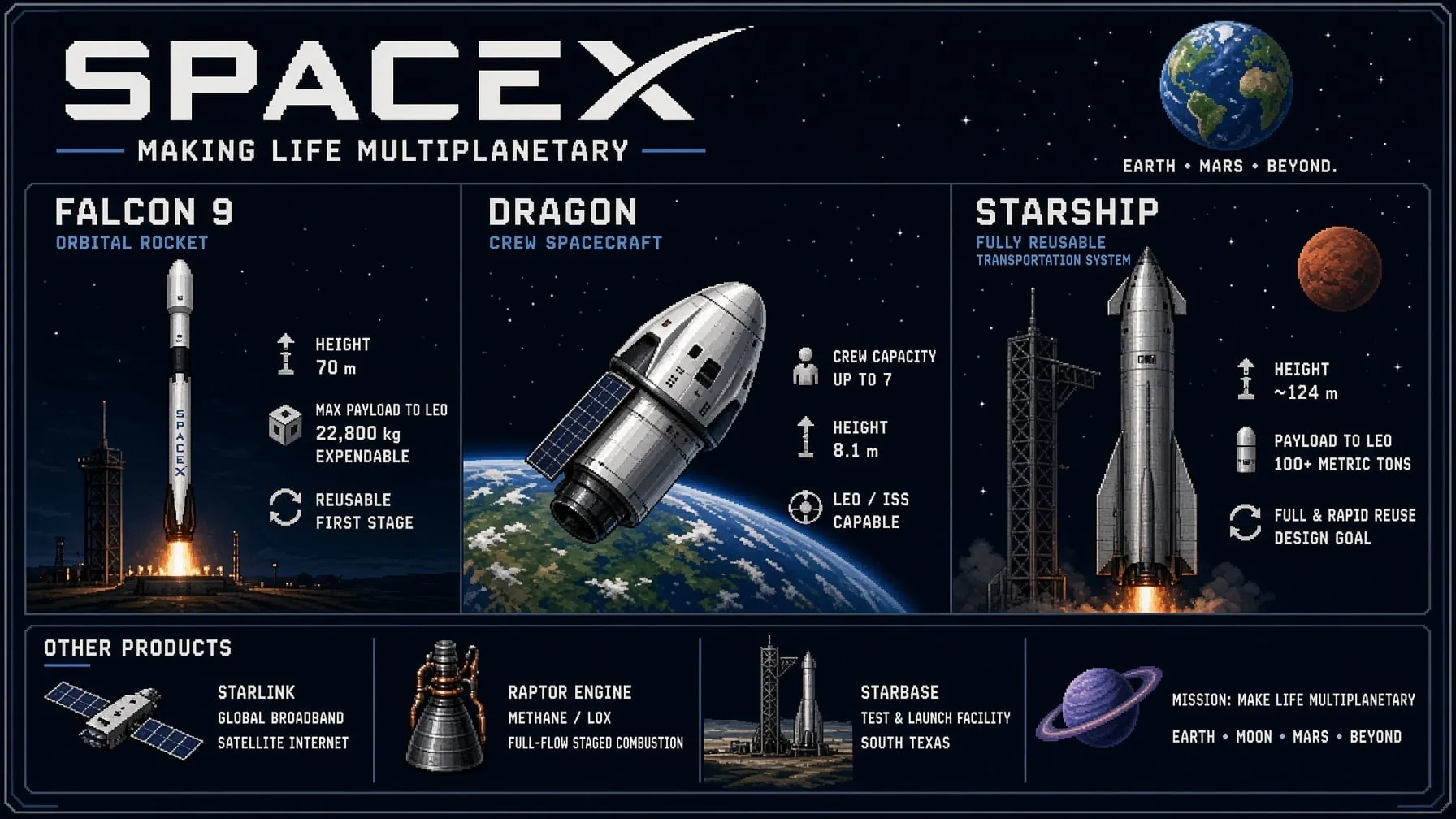
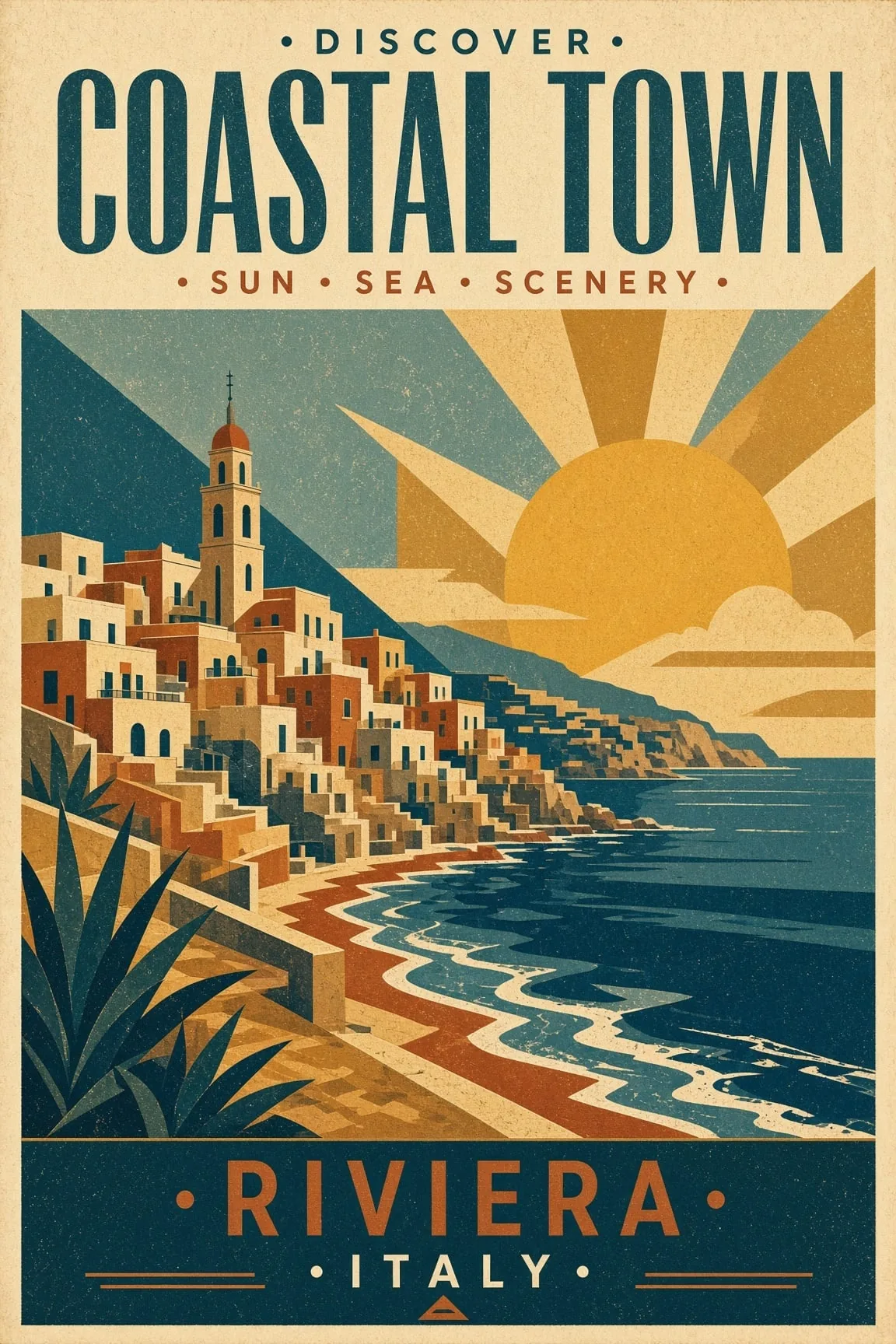
Grok Imagine Image 2.0 product campaign visual example
Campaign VisualGrok Imagine Image 2.0 takes an idea in words or a photo you already have and turns it into a finished visual. Write the prompt, pick your ratio, switch on Quality Mode when the detail matters, and keep iterating until the image is right — campaign art, portraits, product scenes, concept boards, and thumbnails, all in one place.
Product Creative
Grok Imagine Image 2.0 product campaign visual example
Campaign VisualText to Image
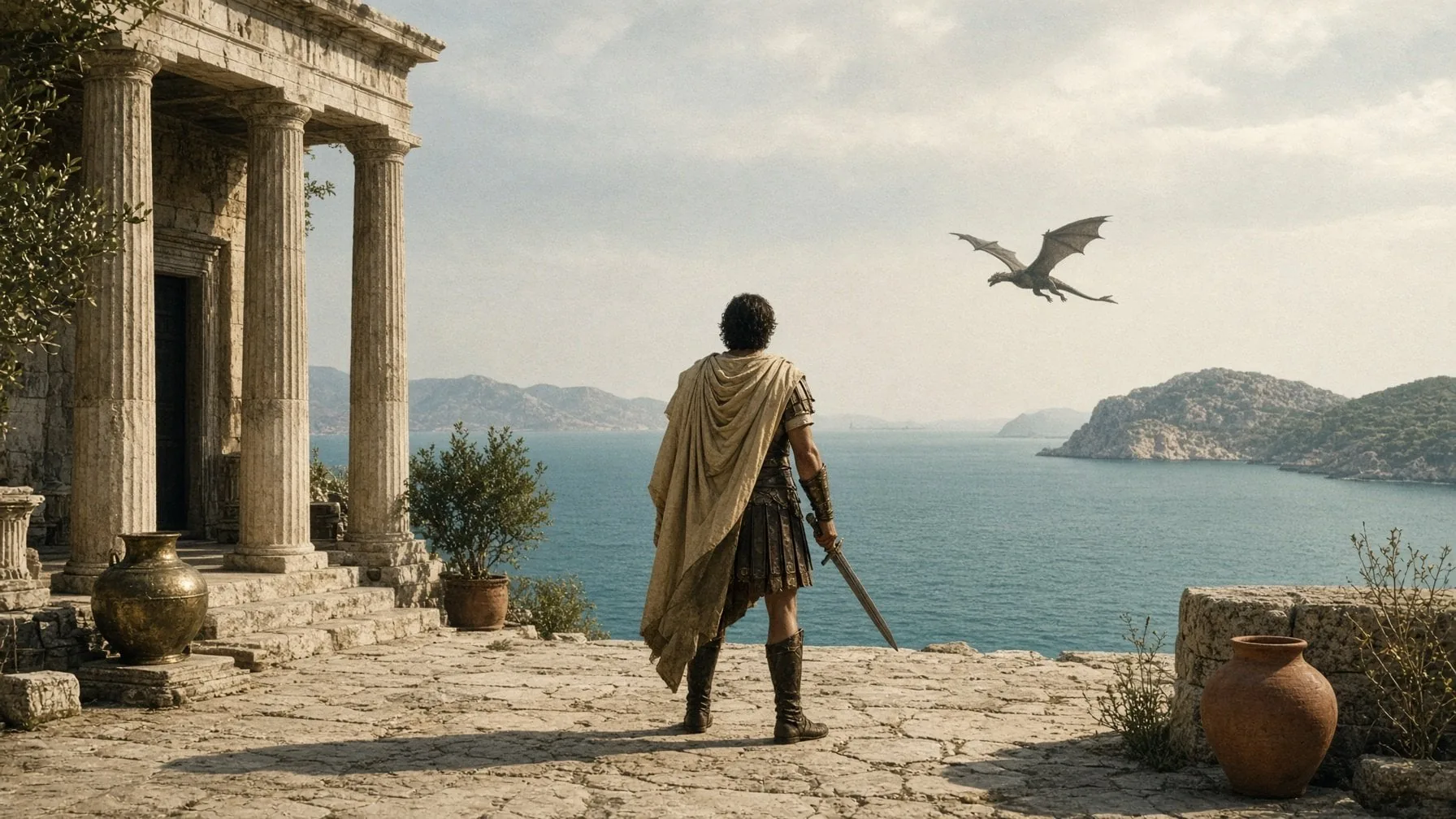
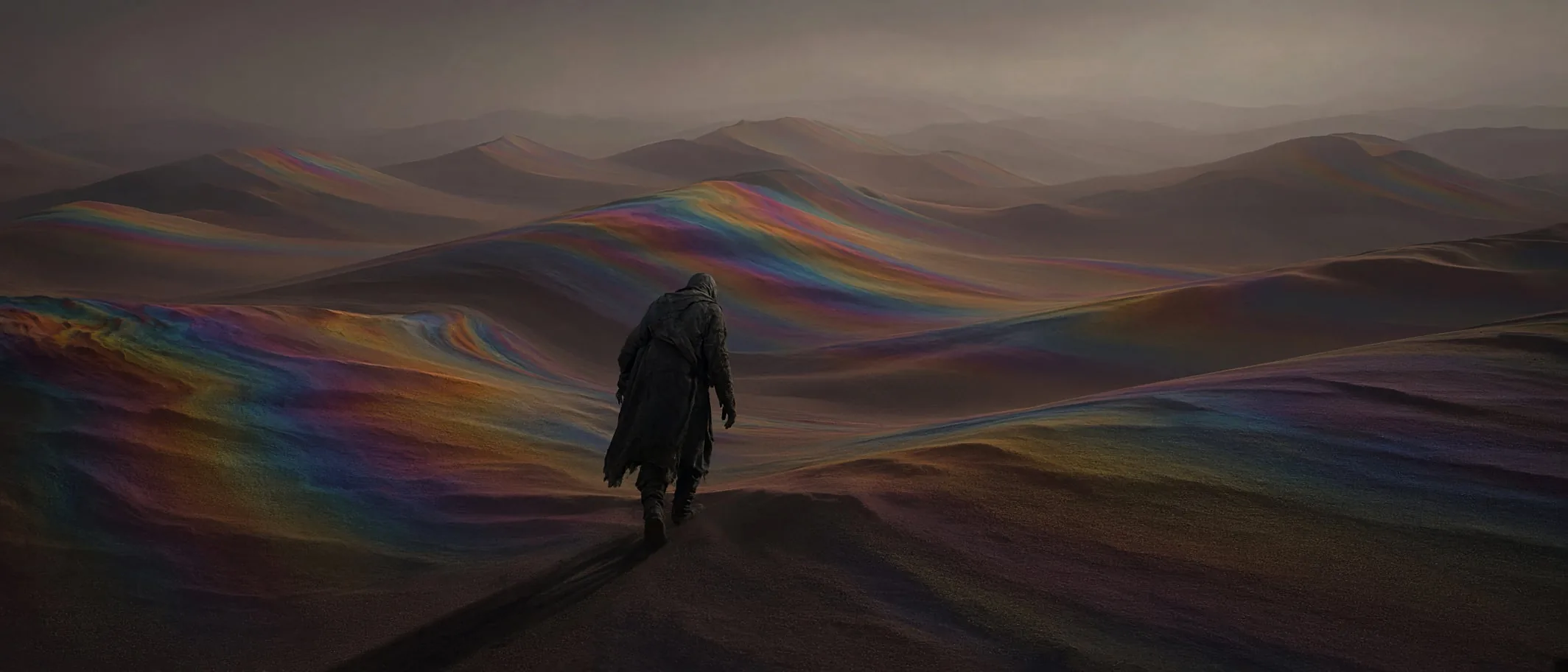
Grok Imagine Image 2.0 cinematic world example
Cinematic WorldIllustration
Grok Imagine Image 2.0 concept art example
Concept ArtImage to Image
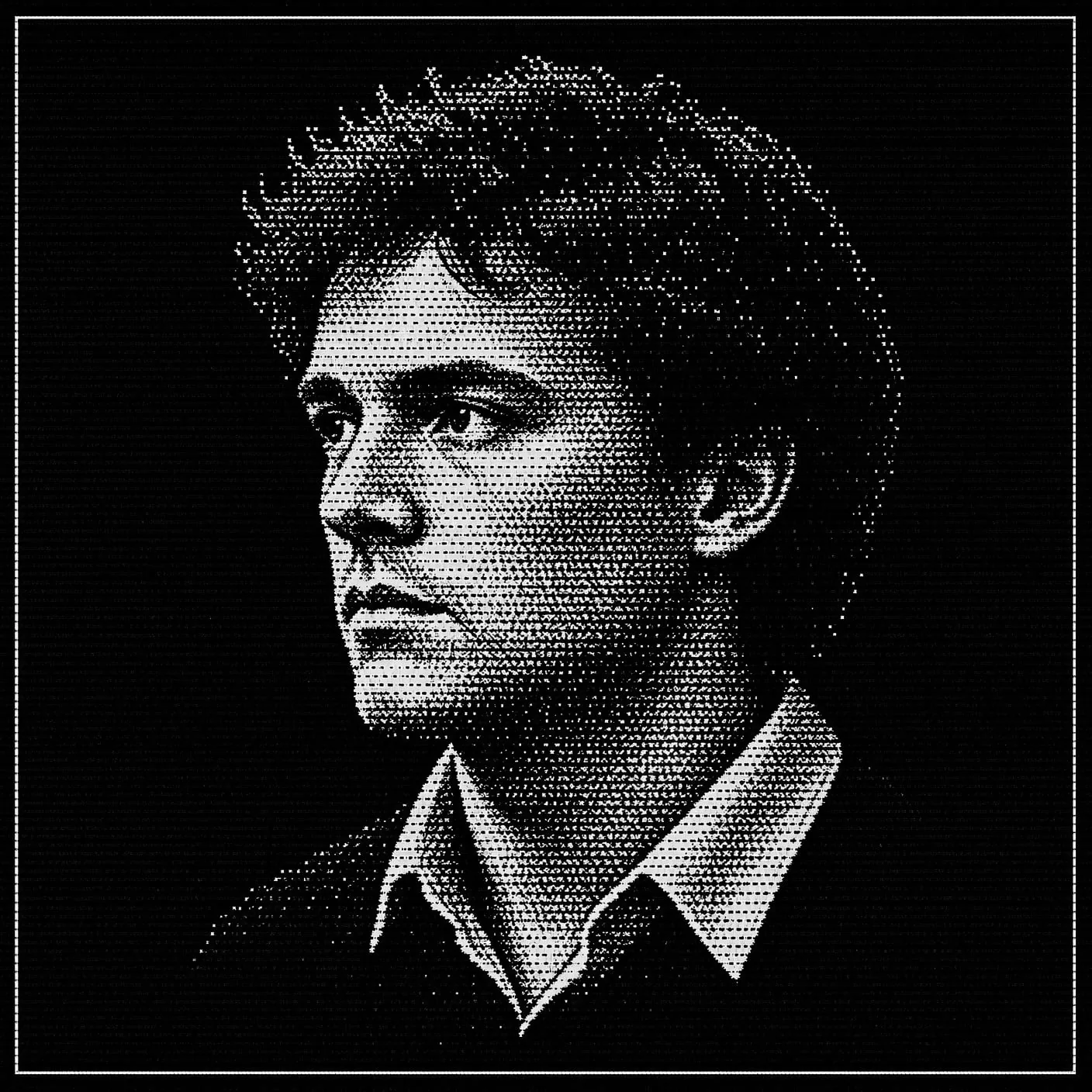
Grok Imagine Image 2.0 fashion editorial example
Fashion EditorialReference Image
Grok Imagine Image 2.0 character reference example
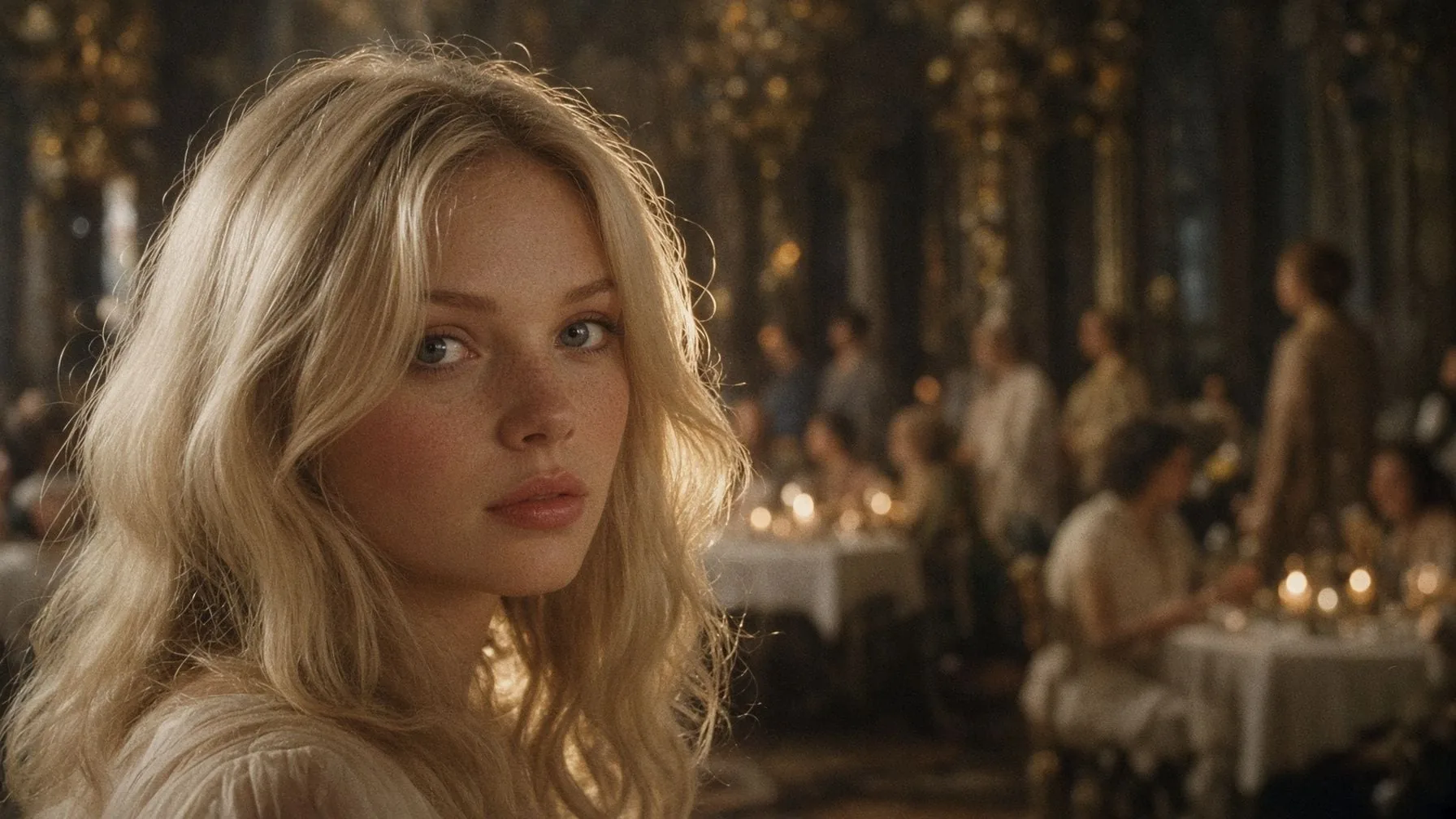
Character Study16:9 Ratio
Grok Imagine Image 2.0 wide cinematic frame example
Wide CinematicGrok Imagine Image 2.0 is built for the part of the work that actually takes time — getting from a rough idea to a visual you would put your name on.
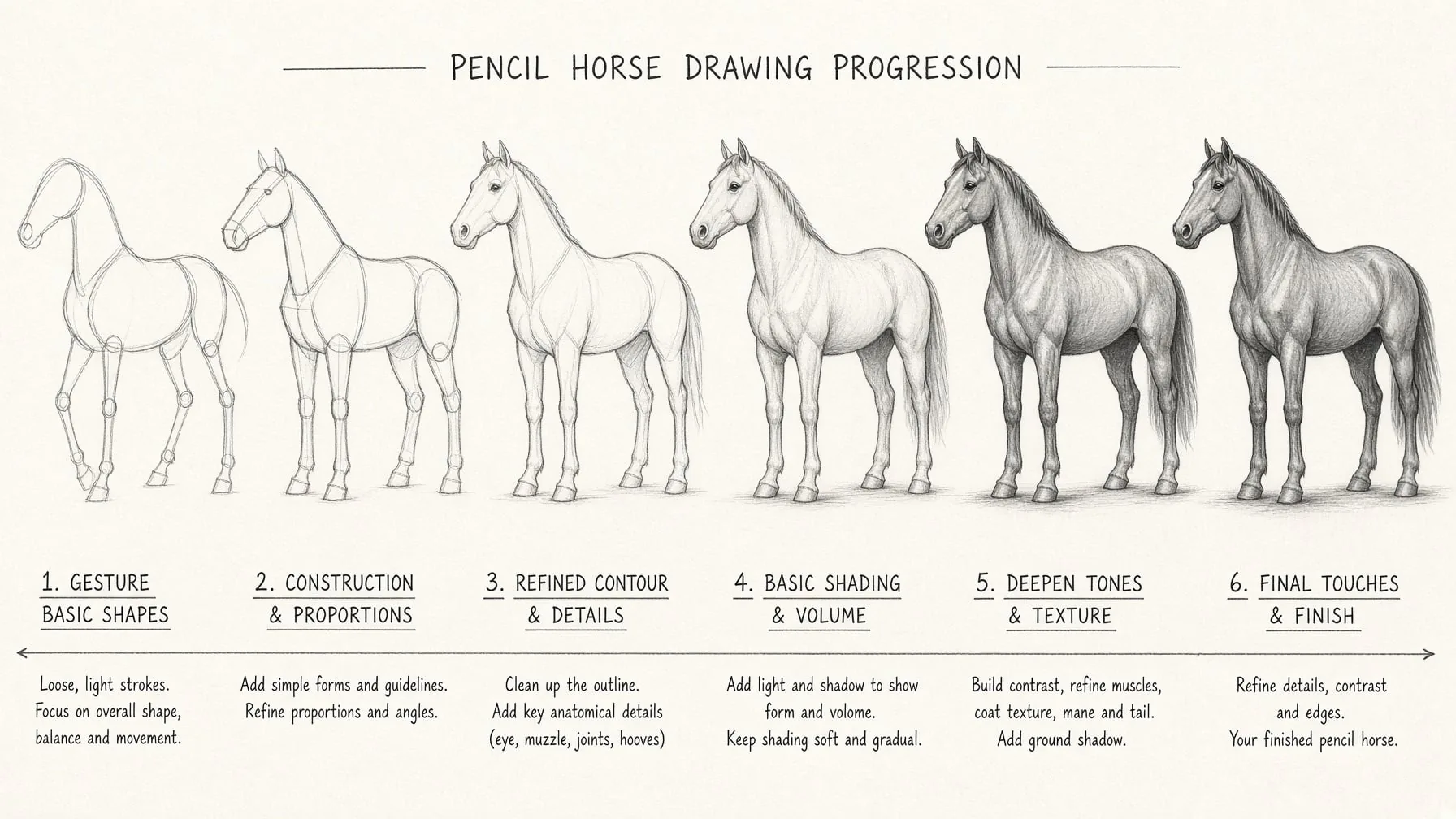
Describe the subject, mood, lighting, camera angle, and palette, and Grok Imagine Image 2.0 holds onto the specifics instead of drifting. Flip on Quality Mode when a piece needs the extra fidelity, or leave it off when you are exploring and want speed.
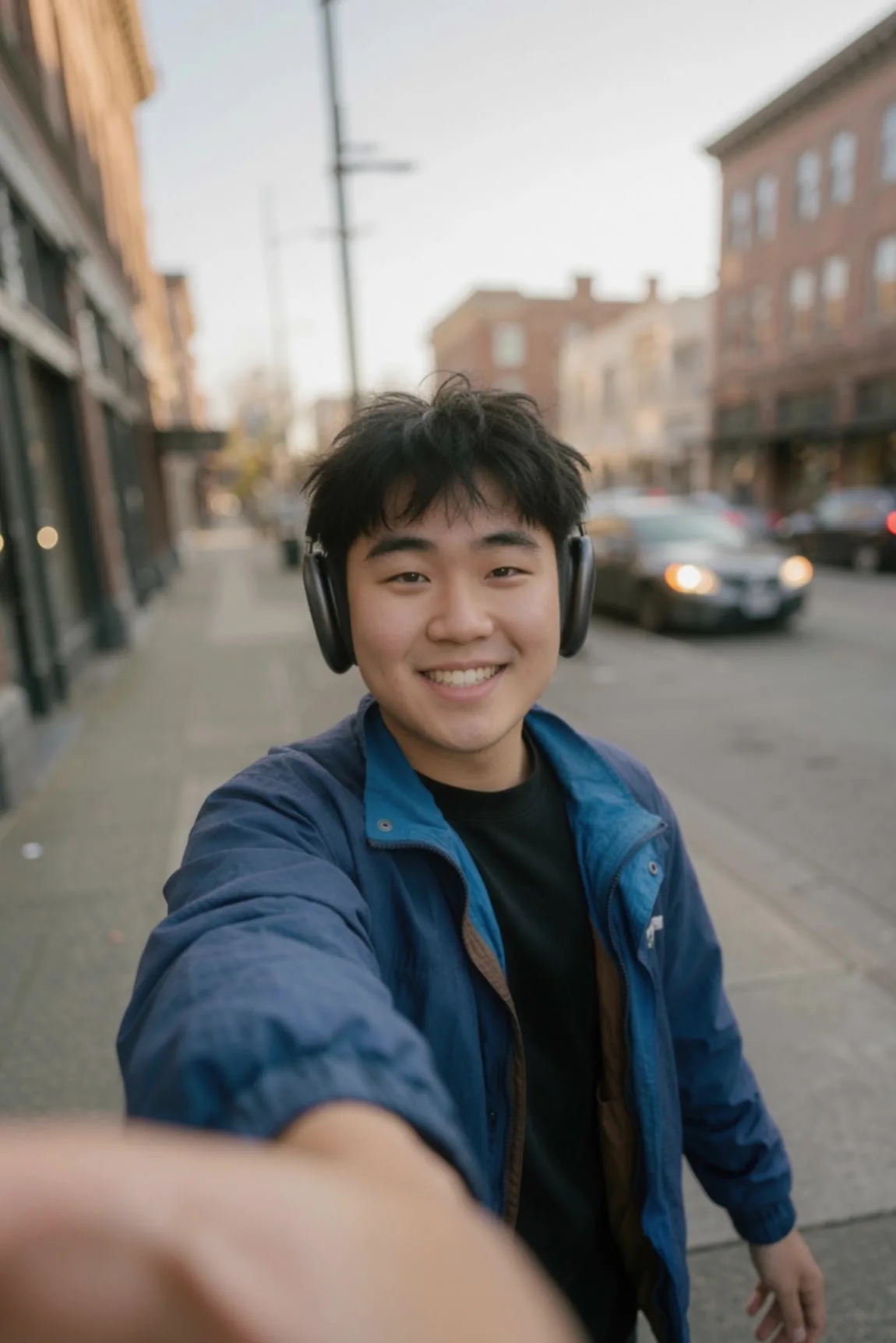
Upload a reference and tell Grok Imagine Image 2.0 what to change — the setting, the styling, the palette, the art direction. The subject you care about stays recognizable while everything around it moves, so restyling a product shot or a portrait does not mean starting over.
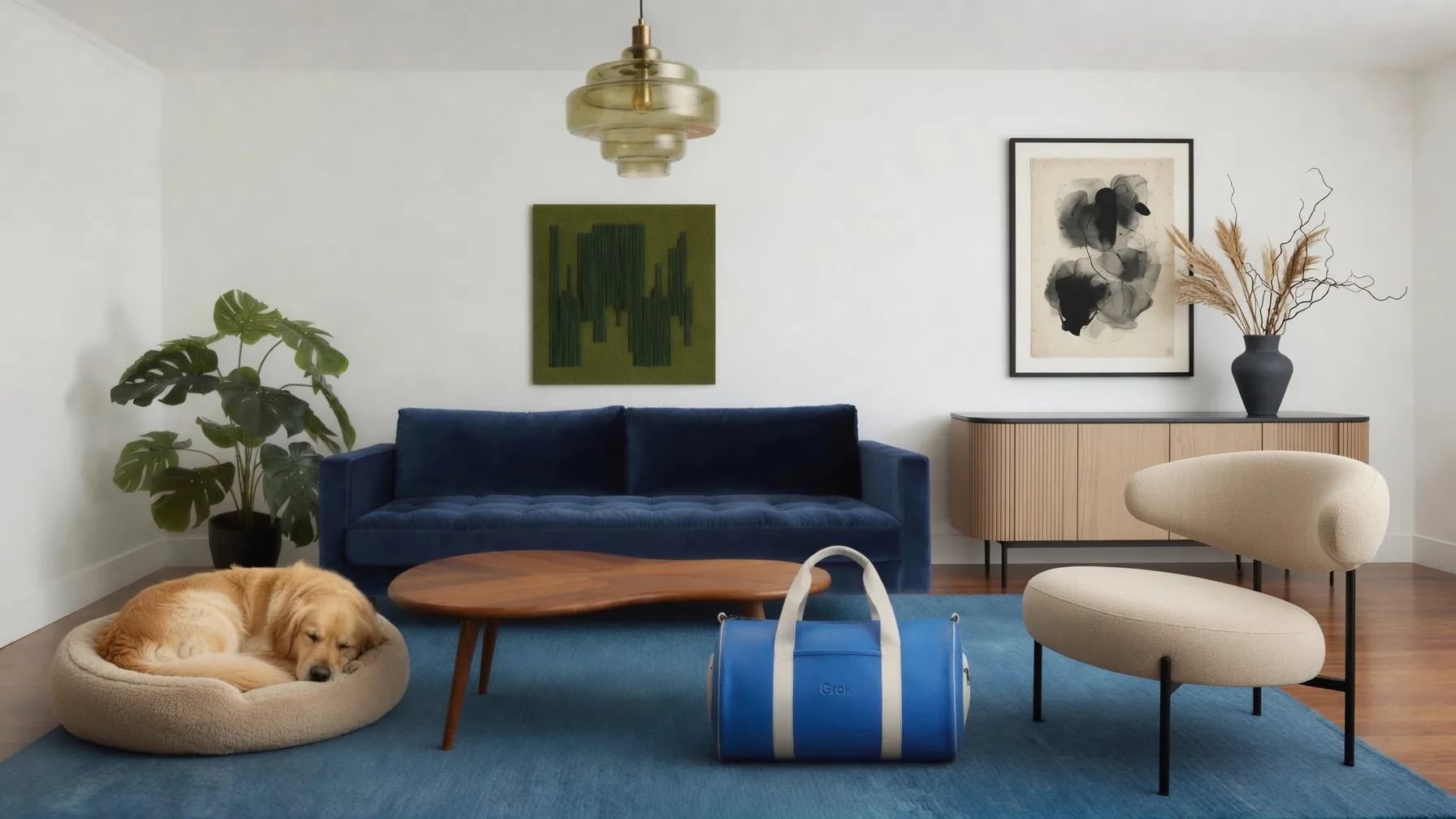
Choose 1:1 for posts, 9:16 for stories, 16:9 for banners, or 2:3 and 3:2 for print-style crops — then switch models without leaving the page when a different look serves the brief better. Compare outputs side by side and keep the one that works.
Pick a starting point, describe the direction, and generate. Three steps from blank page to usable visual.
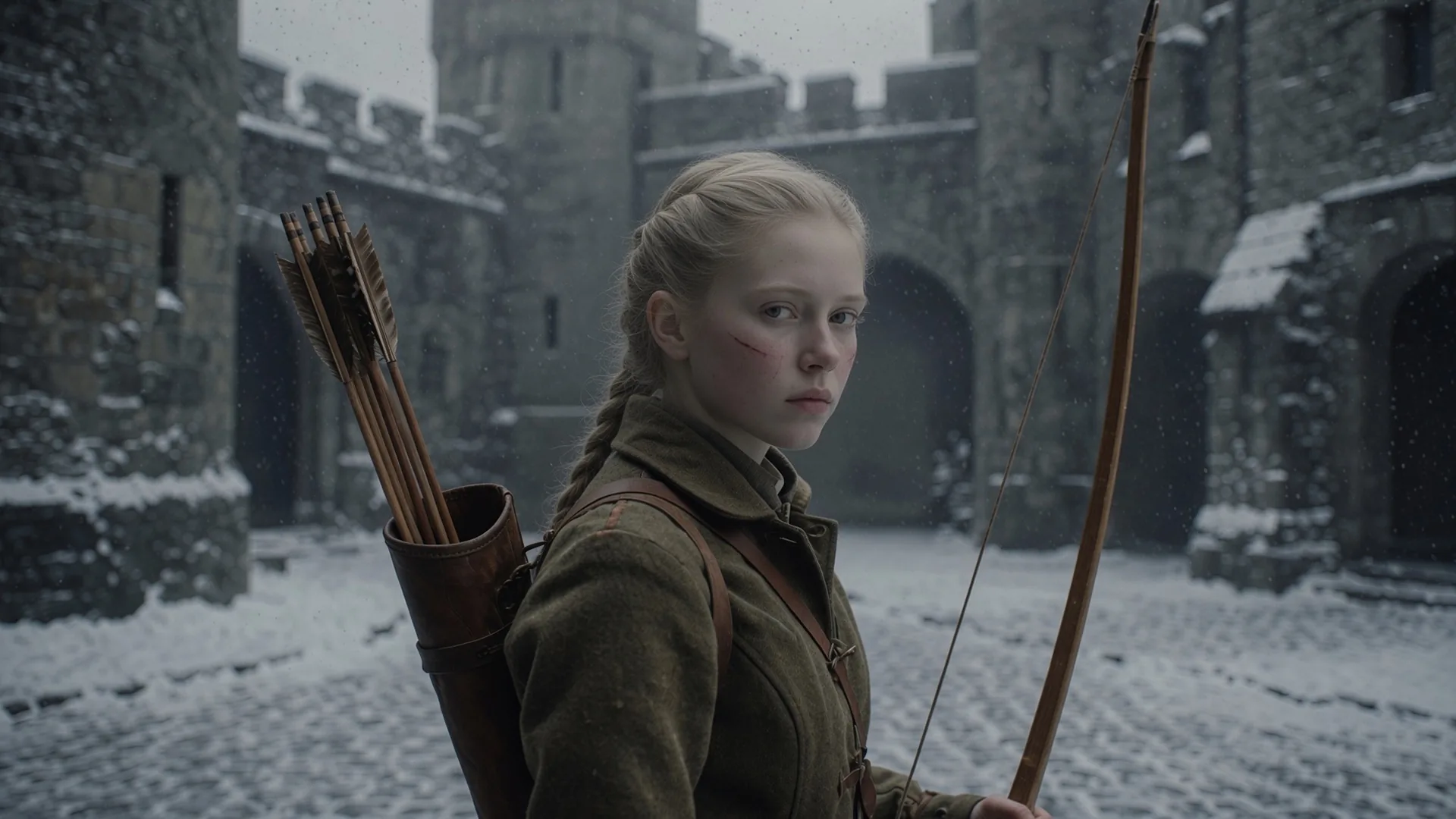
Use Text to Image when the idea lives in words. Use Image to Image when you have a photo, product shot, portrait, or illustration you want transformed rather than replaced.
Add the subject, style, lighting, and palette, choose your aspect ratio, and say what should stay consistent. The more specific the brief, the closer Grok Imagine Image 2.0 lands on the first try.
Review the result, adjust a line of the prompt, and run it again. Iteration is cheap here, so you can explore three directions in the time a single revision round used to take.
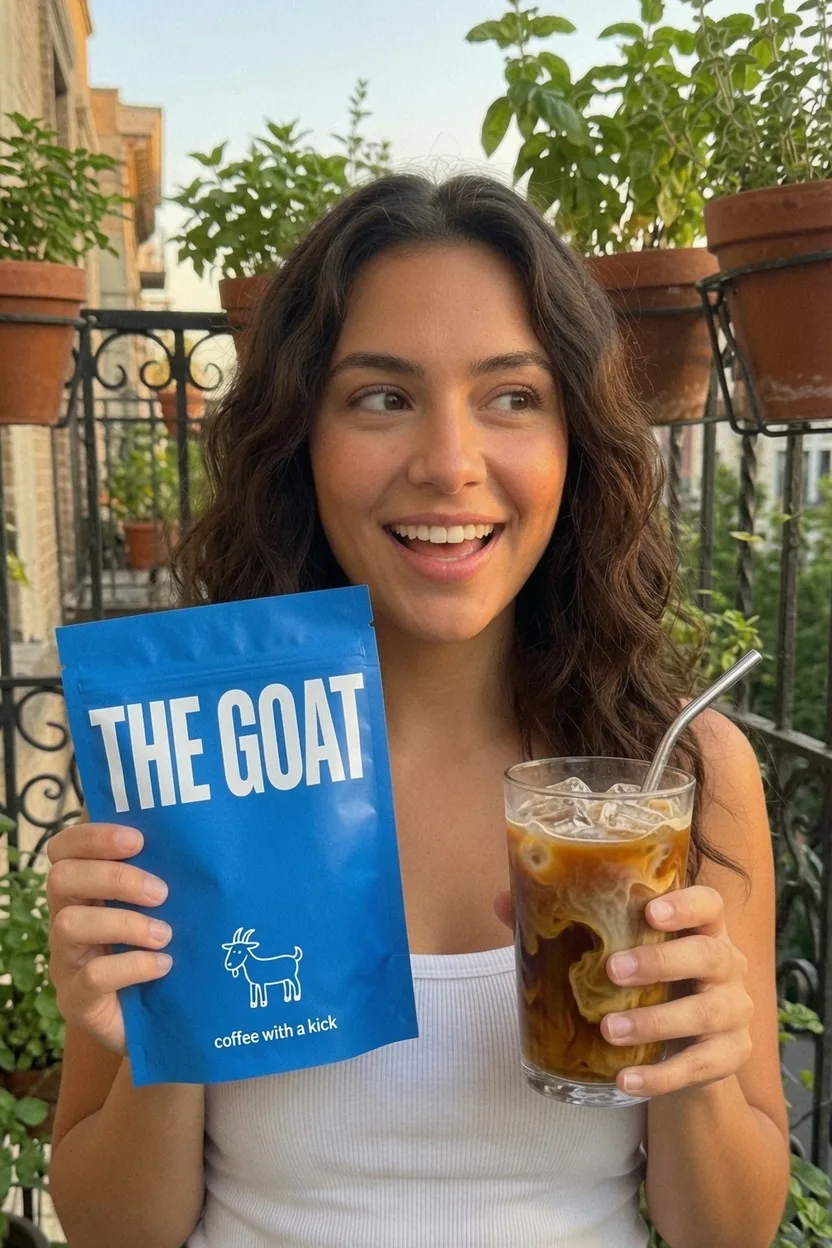
Thumbnails, post graphics, profile art, and campaign stills come out of a prompt instead of a production day. Generate a set in one sitting and stay on schedule.
Start from a prompt or a reference image and get a visual you can actually use — in seconds.