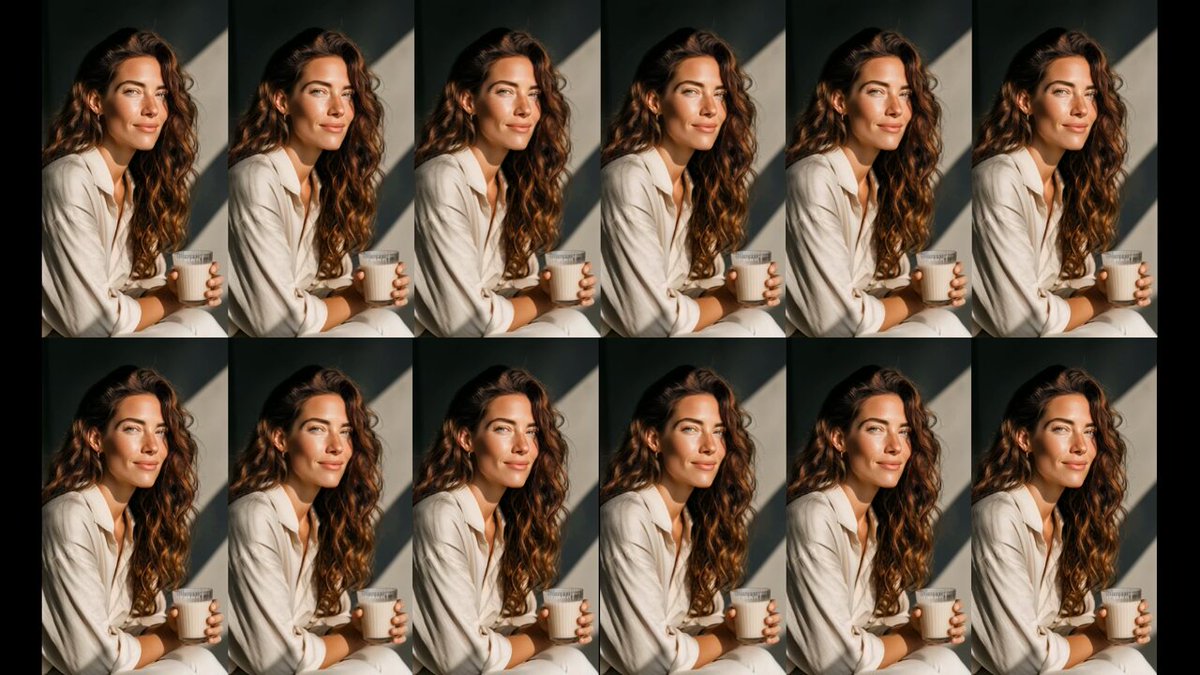
Campaign Visual
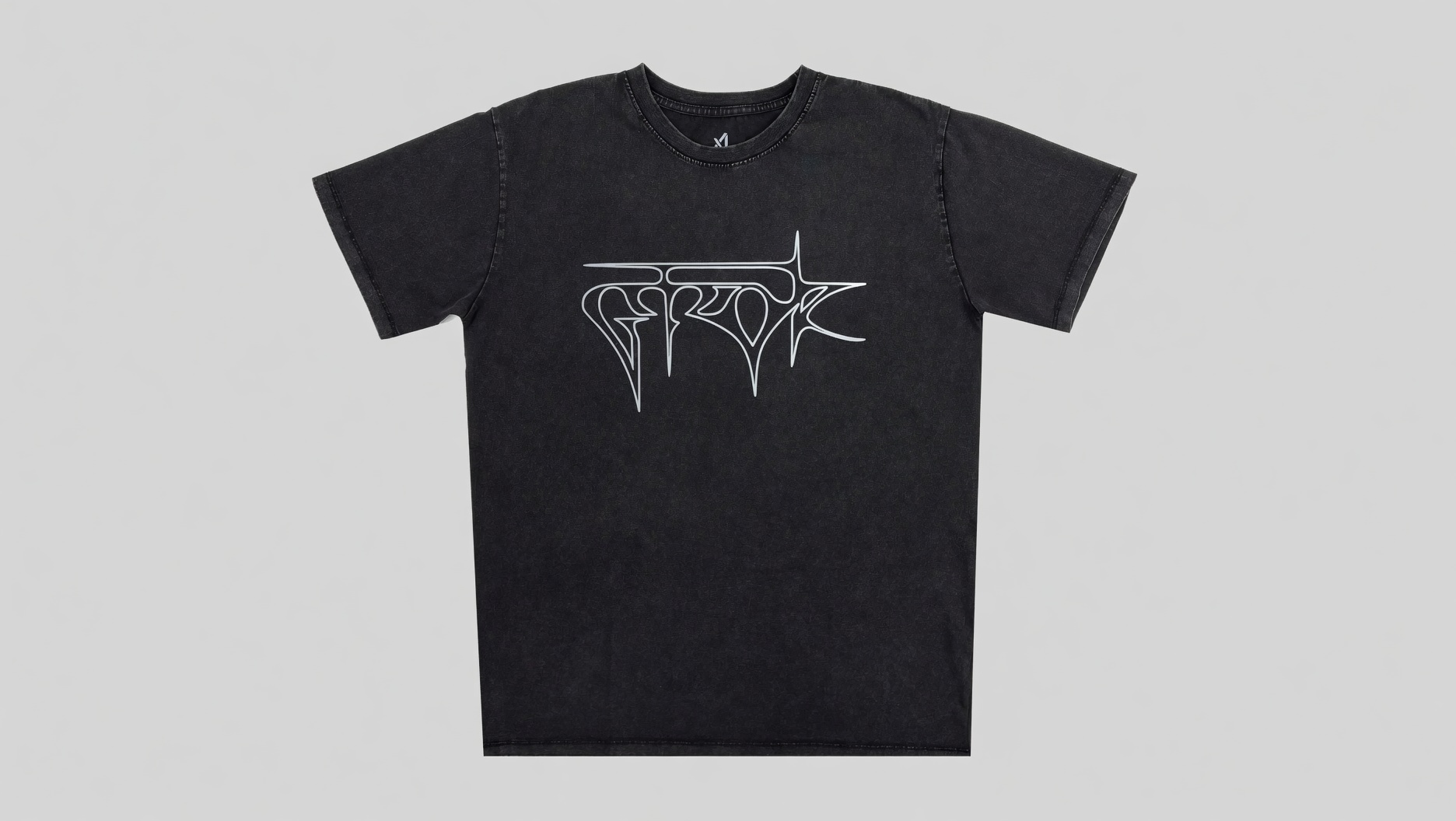
Product Creative
Grok Image product campaign visual example
Campaign VisualGenerate campaign visuals, cinematic concepts, portraits, product scenes, and character art with Grok Imagine — from a text prompt or a reference image.
Product Creative
Grok Image product campaign visual example
Campaign VisualText to Image
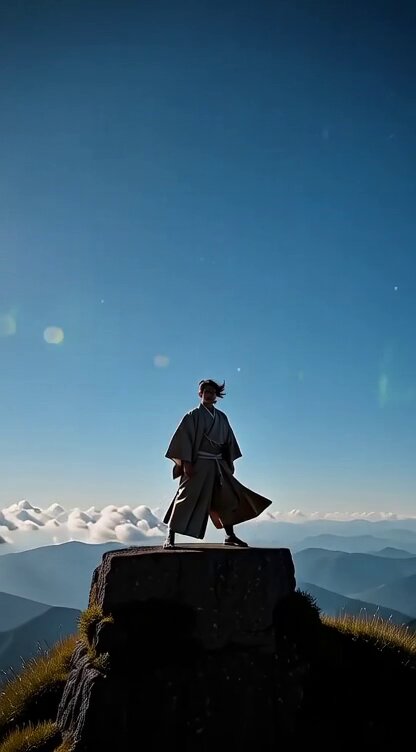
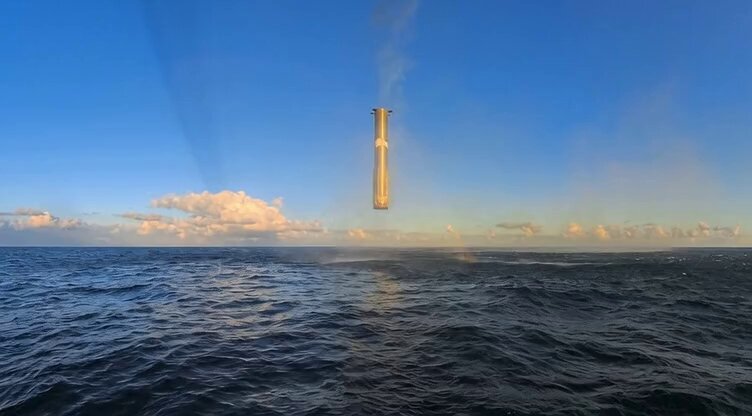
Grok Image cinematic fantasy world example
Cinematic WorldConcept Art
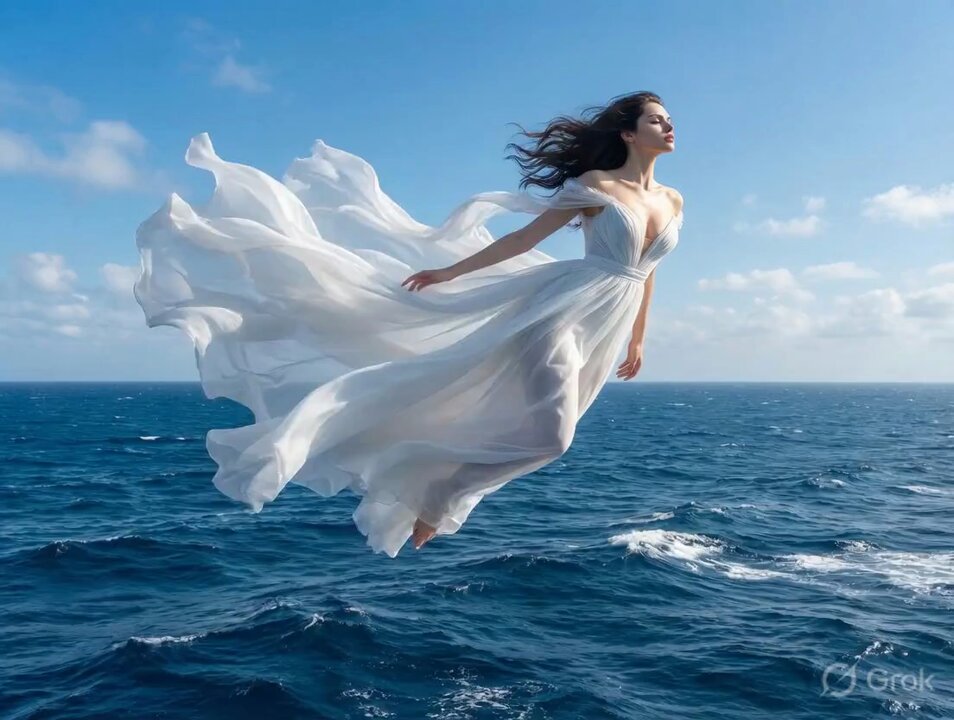
Grok Image fantasy scene concept example
Fantasy SceneImage to Image
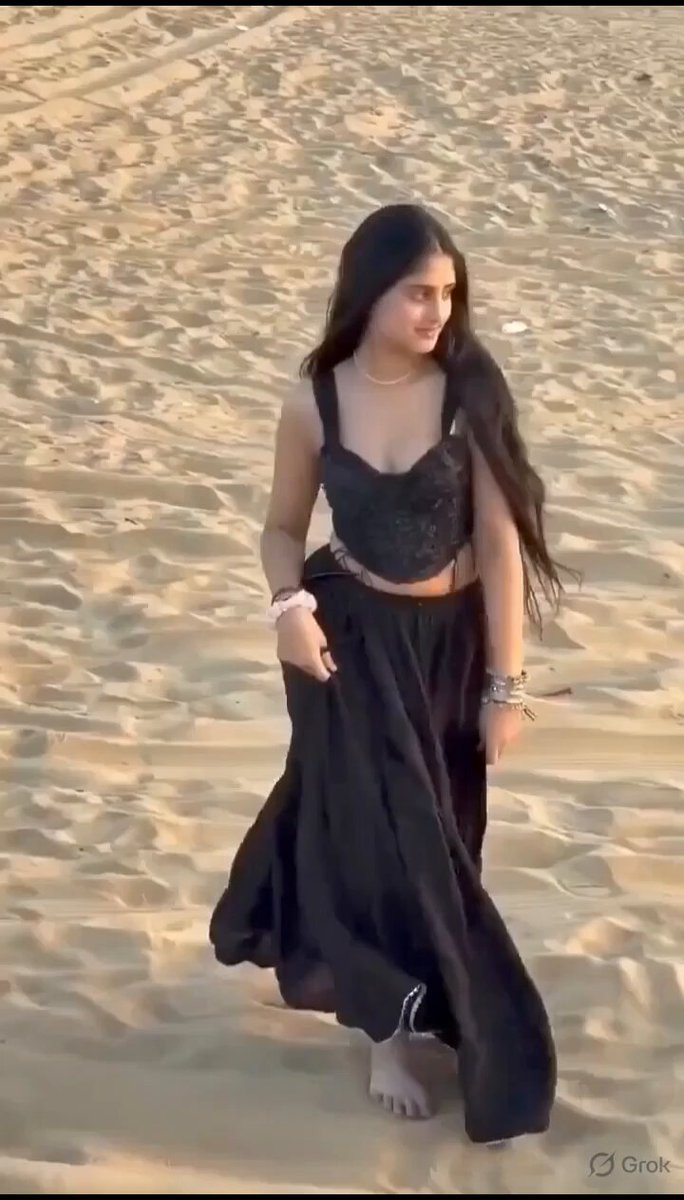
Grok Image fashion editorial visual example
Fashion EditorialReference Image
Grok Image reference character control example
Character ControlCreative Prompt
Grok Image wide cinematic prompt example
Wide CinematicGrok Image helps creators move from idea to polished visual fast, whether they start with a prompt or refine an existing image.
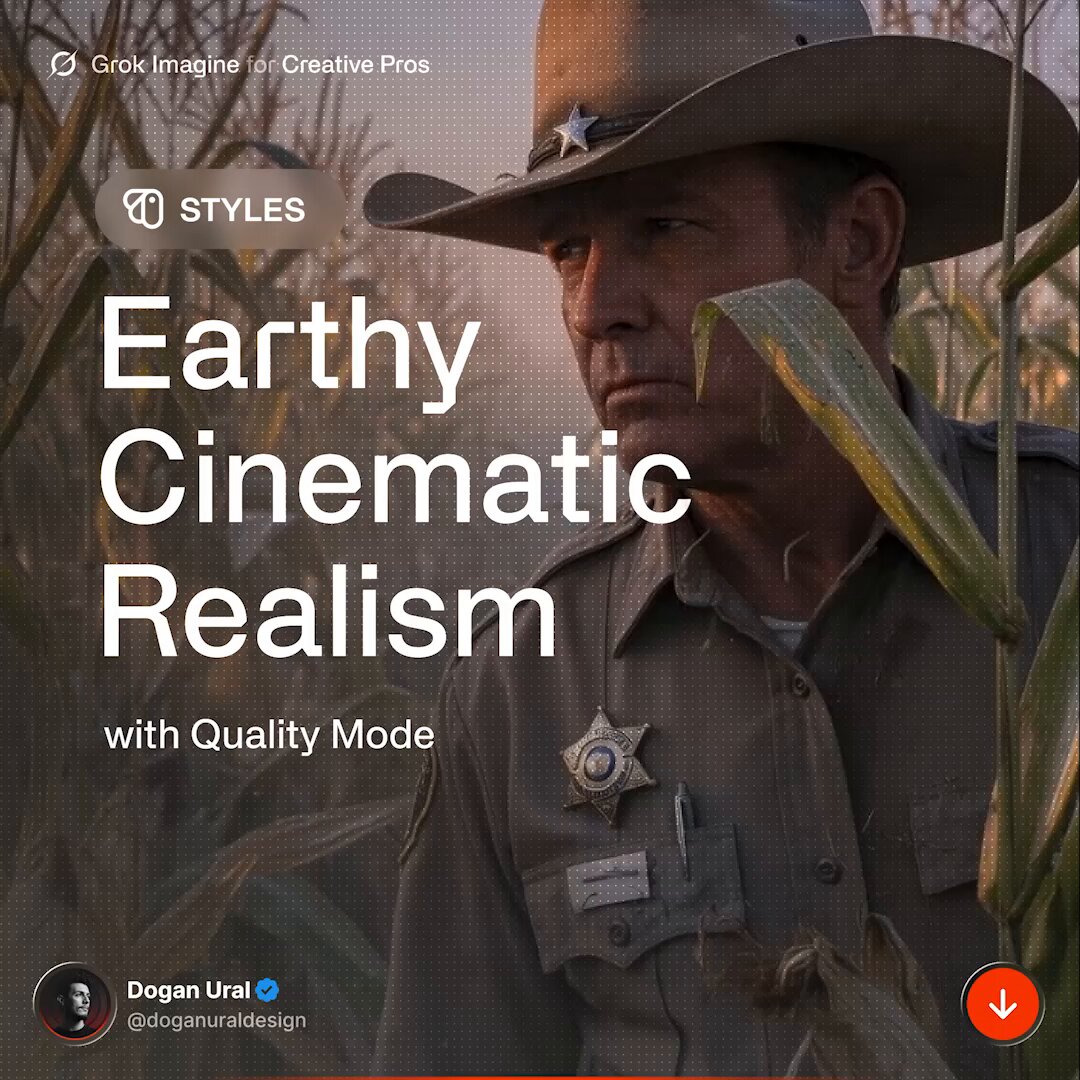
Describe the subject, mood, lighting, composition, and style you want. Grok Image turns your prompt into polished visuals for social posts, campaigns, thumbnails, and concept boards.
Upload an image and ask Grok Imagine to restyle, extend, replace, or refine it. Keep the core idea while exploring new looks, settings, outfits, products, and art directions.
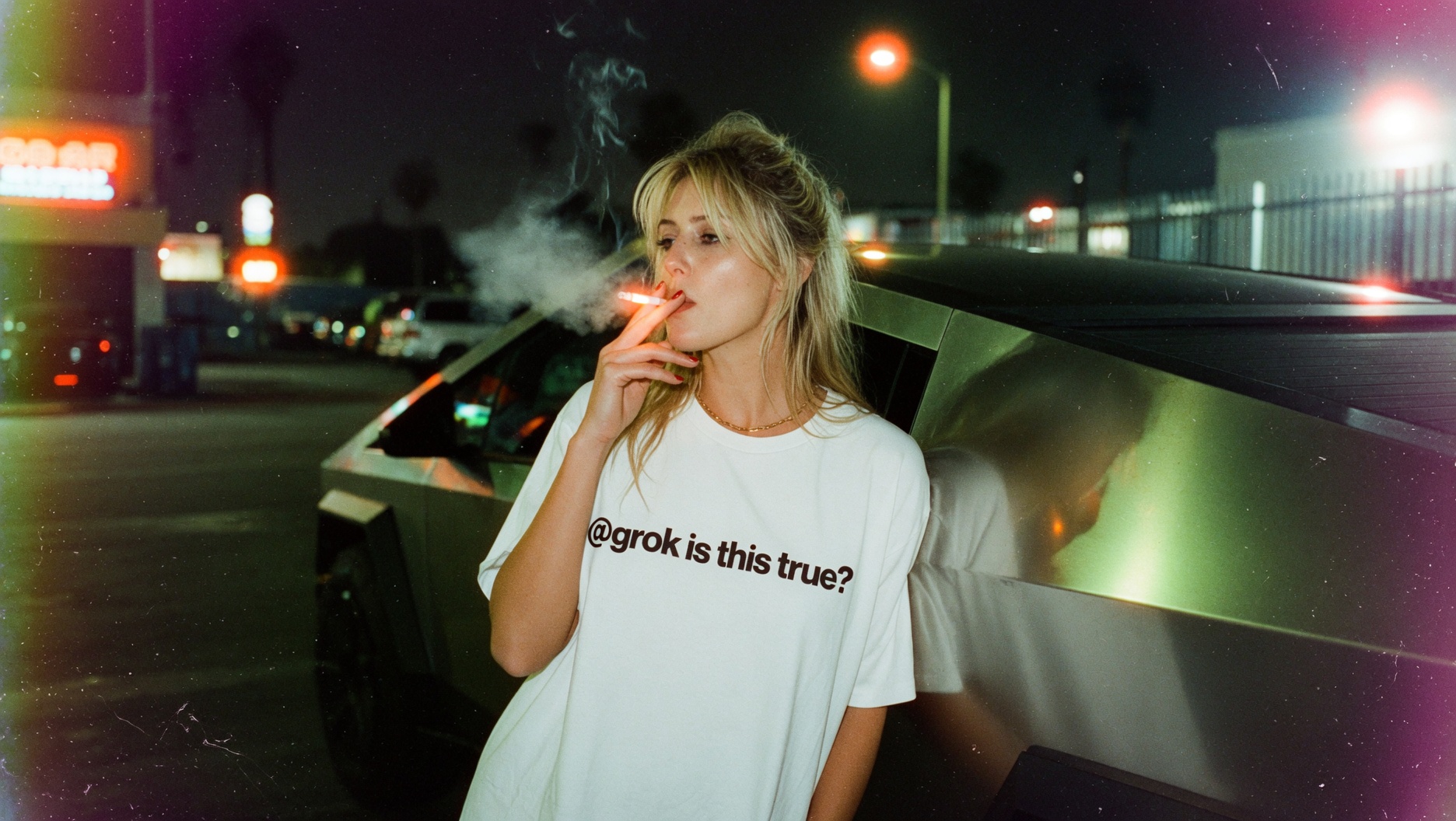
Generate multiple directions, compare outputs, tweak the prompt, and keep moving while the idea is fresh. Grok Image makes visual experimentation feel lightweight instead of slow.
Start from text or upload a reference, describe the visual direction, and generate a high-quality Grok Image.
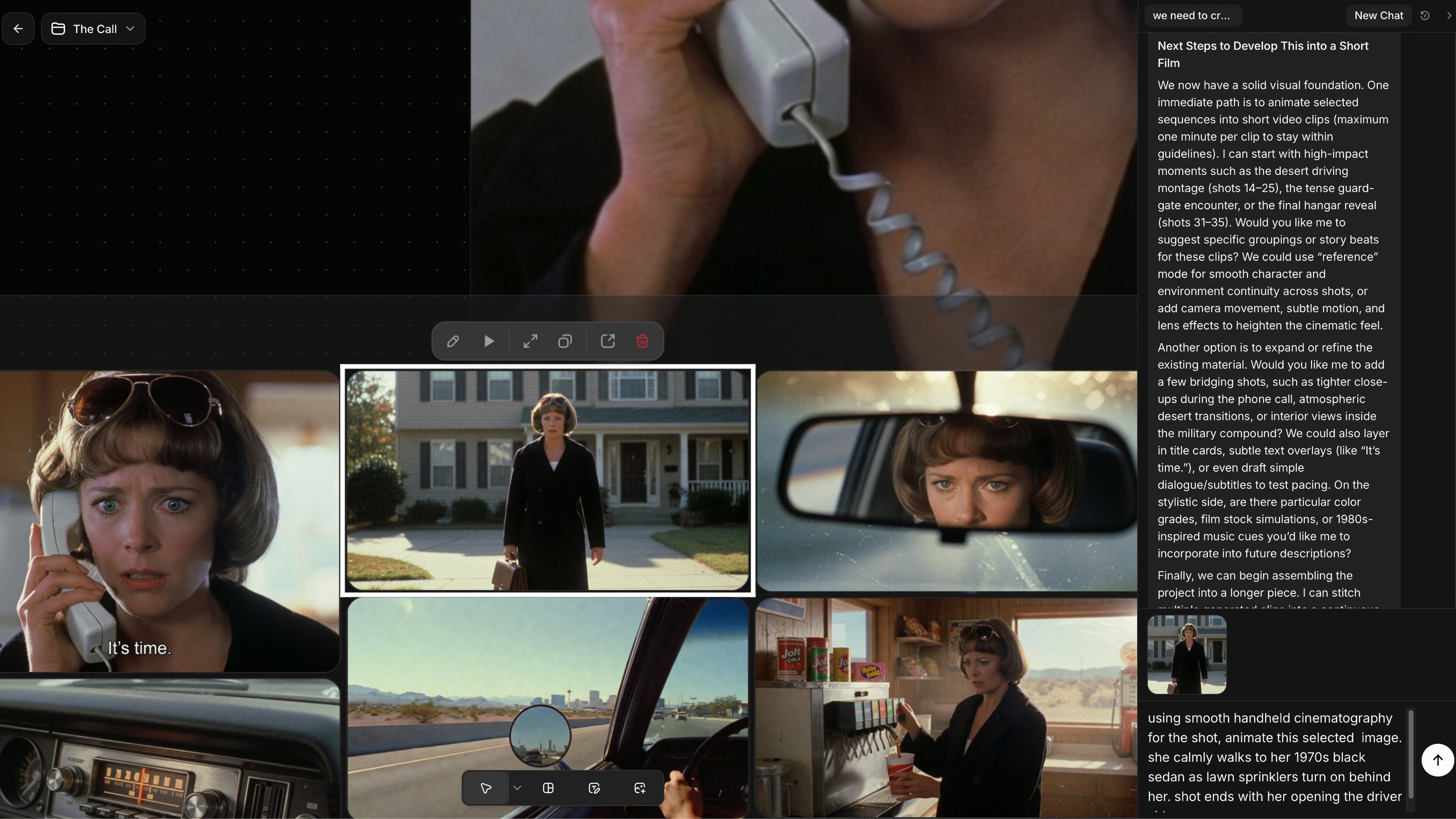
Use Text to Image when you have an idea in words, or Image to Image when you want to transform an existing photo, product shot, portrait, or illustration.
Add subject details, style, lighting, camera angle, color palette, and what should change or stay consistent. Clear prompts help Grok Image stay close to your intent.
Create your image, review the result, adjust the prompt, and generate again until it matches the campaign, post, story, or concept you need.
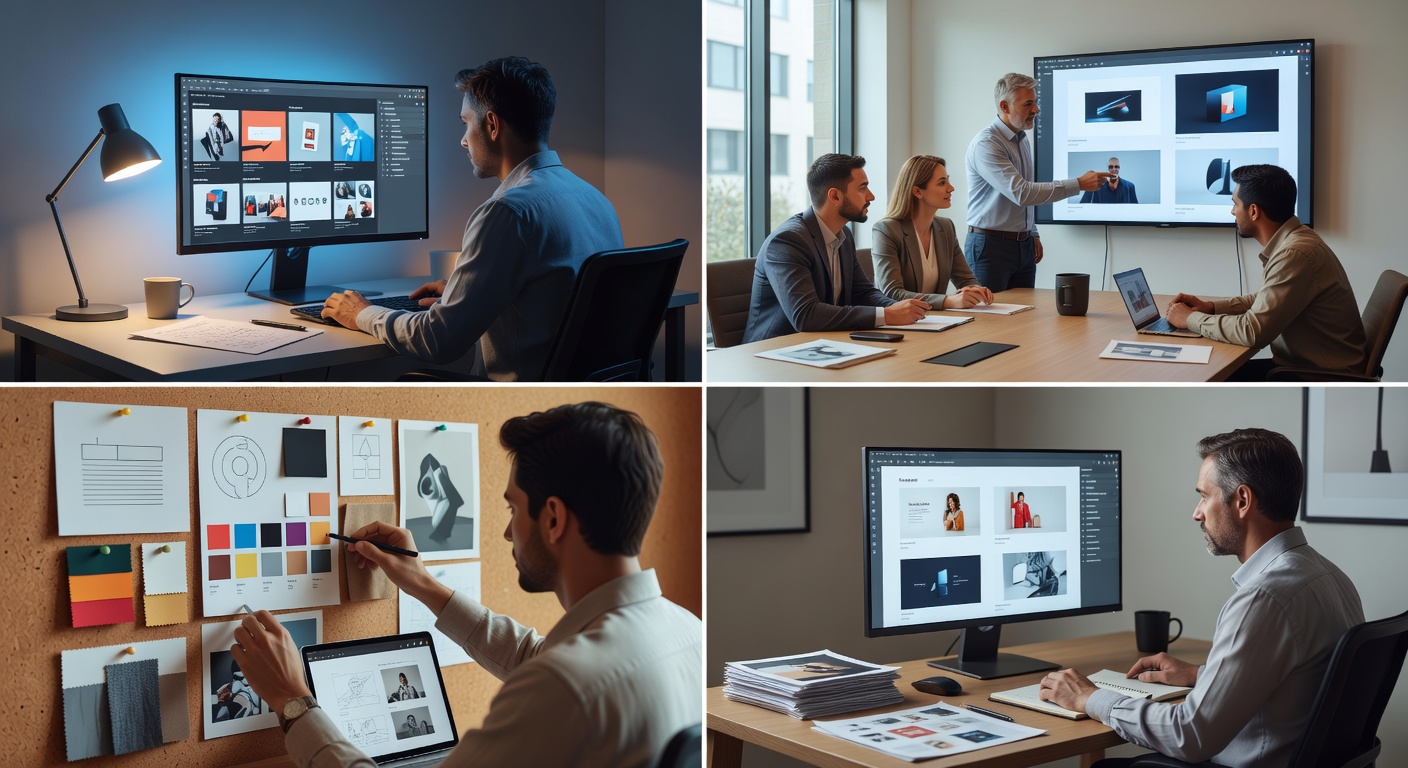
Generate thumbnails, profile images, post graphics, and campaign stills from a prompt or reference image without setting up a photo shoot.
Use a prompt or reference image and let Grok Imagine turn it into polished visual creative in seconds.