
Much Better Lip Sync
Mouth shapes follow the actual syllables and hold through a full line, so a talking clip reads as a person instead of a puppet.
Grok Imagine Video 2.0 brings much better lip sync, natively generated sound, image-to-video and text-to-video in one workspace, and a loop fast enough to rewrite a line and run the take again. Create your Grok Imagine 2 video now — no camera, no mic, no actors.
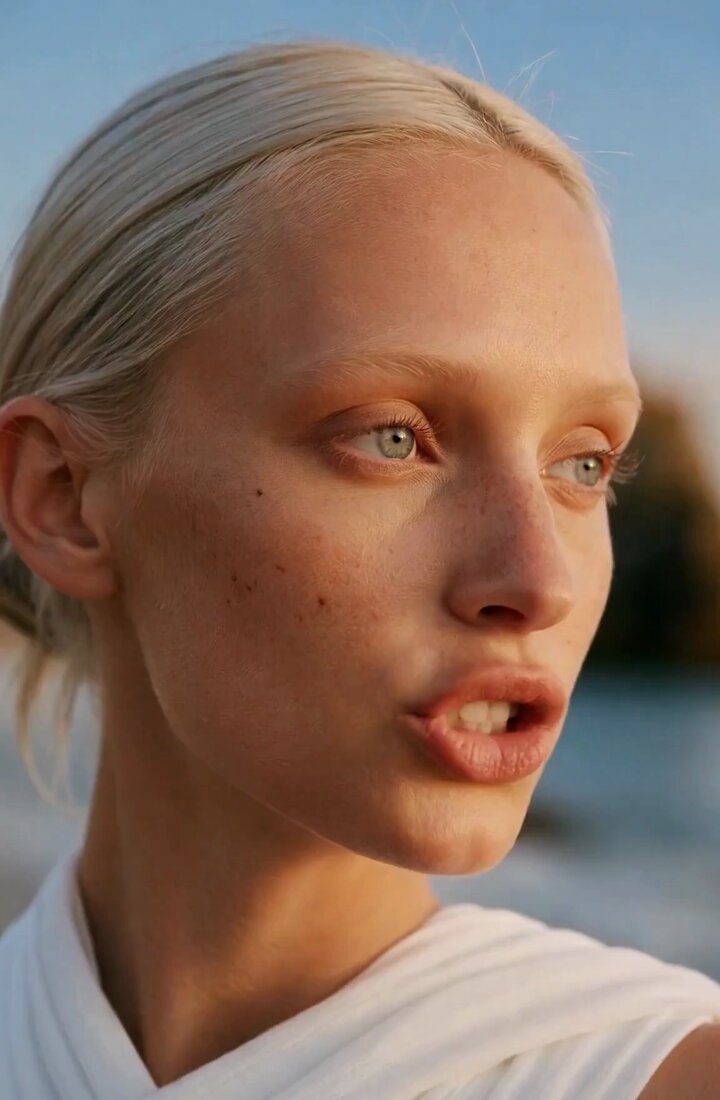

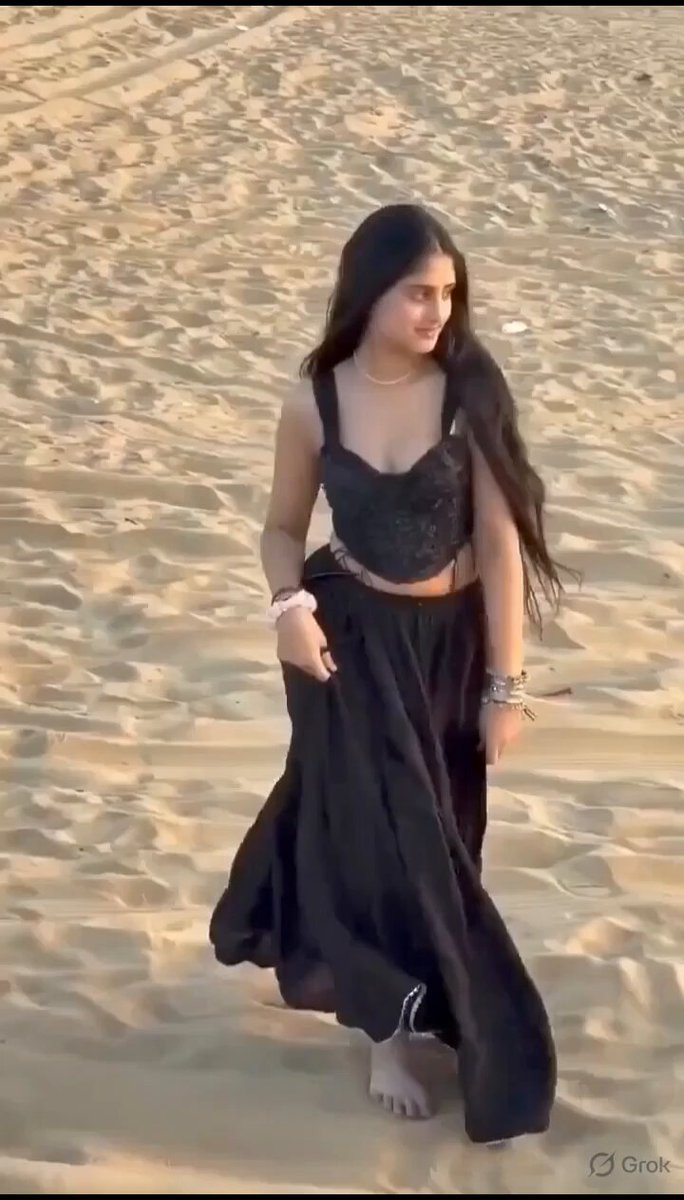
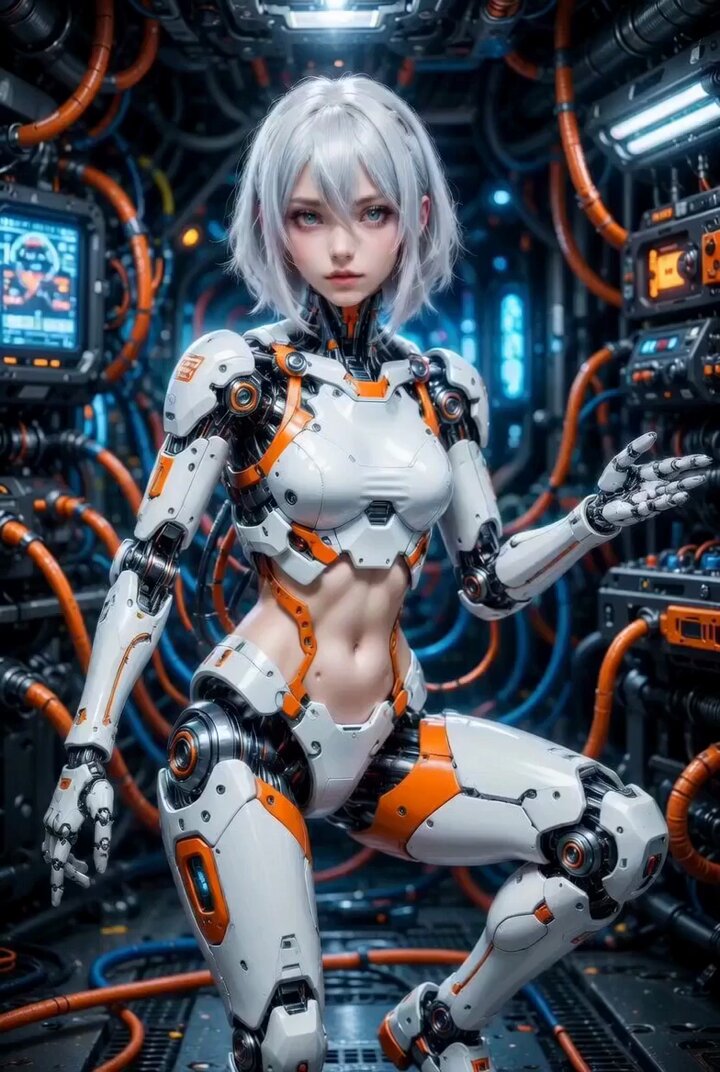
Mouth shapes follow the actual syllables and hold through a full line, so a talking clip reads as a person instead of a puppet.
Dialogue, effects, and room tone come out of the same pass as the picture, so the audio never slides out of sync with the shot.
Upload a photo as the opening frame and Grok Imagine 2 animates forward from it, keeping your composition, subject, and style intact.
Skip the image and describe the shot, the line, and the sound in a single prompt when you have nothing to start from.
Most clips come back in under a minute, so you can rewrite one line of dialogue and run the whole take again.
Photoreal portraits, anime, claymation, and 3D characters all sync to the same dialogue without switching tools.
Grok Imagine 2 is the new Grok Imagine model. The headline is not resolution — it is lip sync and sound.
Grok Imagine Video 2.0 shapes lips to the actual syllables and holds timing across a full line, with less drift, mouth flutter, and facial distortion between frames. Create talking-head clips, dialogue scenes, product spokespeople, and character monologues that hold up at full volume rather than only on mute.
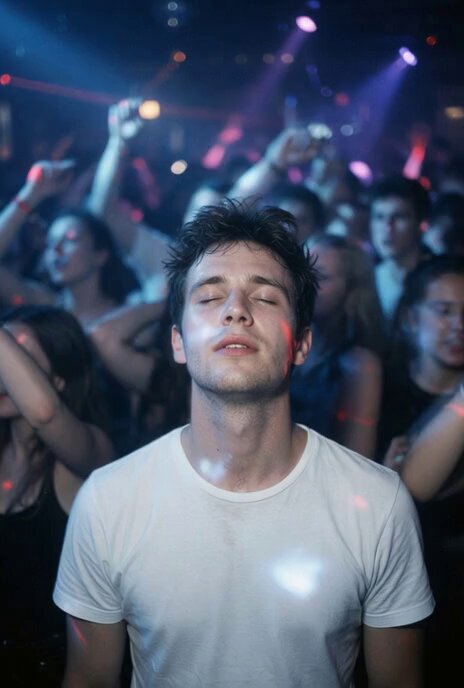
Grok Imagine 2 generates the audio in the same pass as the picture — voices, footsteps, room tone, wind, and mechanical detail all come from the prompt instead of a track laid on afterwards. Create dialogue clips, ambient scenes, product spots, and action beats where the sound moves with the shot rather than drifting behind it.

Every frame and every voice in a Grok Imagine Video 2.0 clip is generated from a prompt, so a shoot, a booth, and a cast collapse into one text box. Produce UGC ads, brand spots, explainers, and social content on a schedule filming could never match, and test ten versions of a line before lunch.
Script the line, generate the face and the voice together, and post. No camera, no mic, and no retake because a car went past the window.
Pick the model, add your inputs, and generate video and audio in one pass.

Open the generator above and pick the Grok Imagine model in the selector.
Upload a first-frame image, or write a prompt with the line your subject speaks and the sound around it.
Choose your settings, click Generate, and play the result back with the sound on.
Generate video and audio in one pass, with lip sync that holds through the whole line. No camera, no mic, no actors.